



Q3 Calendar & Tasks: Tasks
Take Control of Your Tasks
You already know how to map out your big events on your digital calendars, but what about all the tasks you need to get done? Things like "study for math," "feed the dog," or "finish the science slides" can easily slip through the cracks. Trying to keep every to-do floating in your brain is exhausting—and a quick way to get overwhelmed.
In this activity, you will learn how to offload those thoughts using a digital task or to-do list. You will practice using tools to:
- Create Task Lists: Set up separate lists to keep your schoolwork, home chores, and club activities organized.
- Build Subtasks: Break massive, scary projects into small, bite-sized steps.
- Set Scheduled Tasks: Assign due dates or set tasks to repeat so your action items show up right alongside your schedule.
- Add Tasks to a Calendar: See exactly how your daily to-dos fit into your weekly events.
- Track Completed Tasks: Earn that satisfying feeling of checking an item off your list and seeing what you have accomplished.
Discussion questions to think about while the video (select the one that fits your school use) plays:
- What items would be better to add to a digital tasks list than a calendar? Why?
- What are the pros and cons of using a digital task list compared to a paper list?
NOTE: For the Google Video, select Watch on YouTube (see reason for video not playing on our website).
Team Google Tasks
Direct link to Team Google Tasks (3:07 min)
Team Microsoft (Outlook) To Do
Direct link to Team Microsoft (Outlook) To Do (1:12 min.)
Your Tasks & To-Do Session
In this session, you will learn how to set up and organize your Google Tasks or Microsoft To Do lists.
Step 1. Review Tips for a successful tutorial.
- Read the instructions on the pop-up page completely.
- Two scroll bars will appear on the right-hand side, one for the calendar and one for the entire training screen. You may need to scroll up and down to complete each step.
- You may turn the "read" sound off or back on by selecting the sound icon at the top of the page.
- Note the items highlighted with a blue border.
- You may move the instruction box around by selecting the MOVE or + button and dragging it around. This will help you view the instructions while in the correct location on the calendar screen.
- If you do not follow the instructions completely, you will not be able to move on in the tutorial.
Step 2. Now select the image for the calendar tutorial that is appropriate for your school.
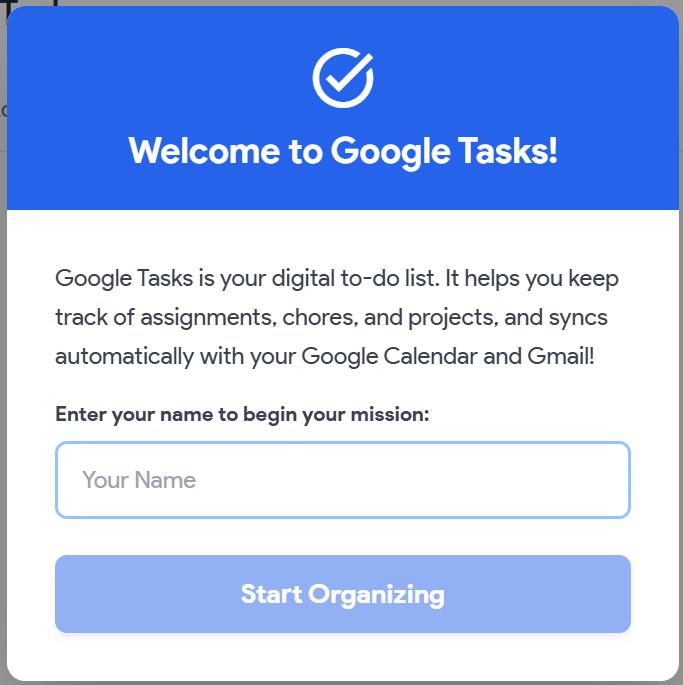
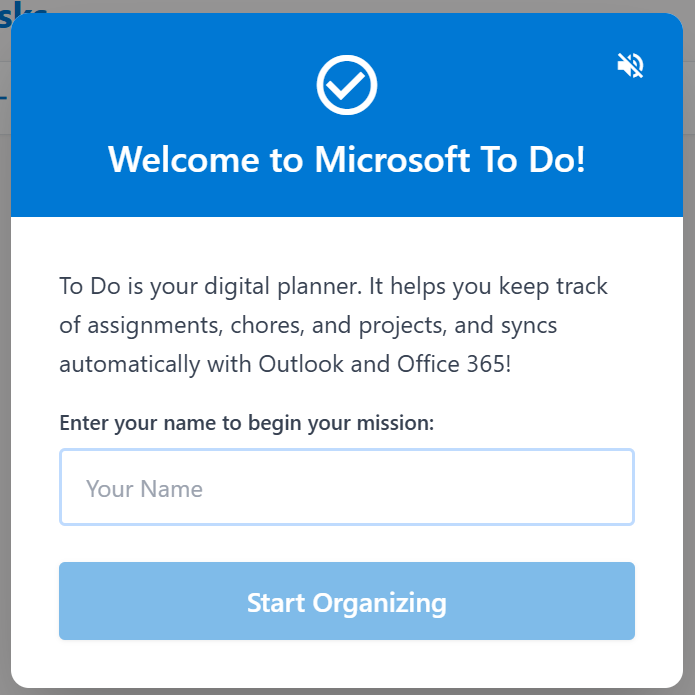
Direct link to Google Tasks Training | Direct link to Microsoft To Do Training
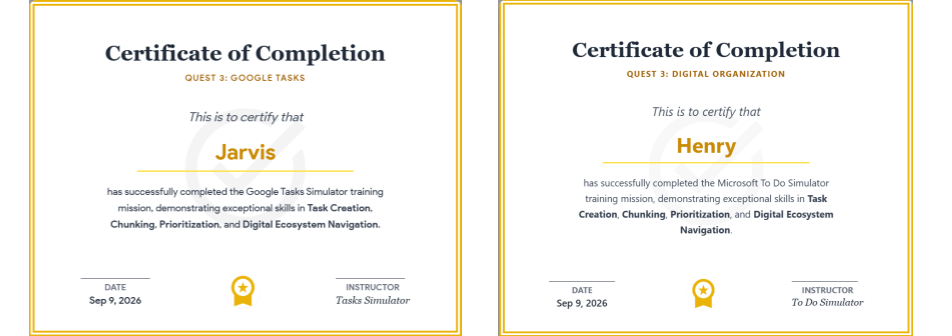
Step 3. Add your Certificate of Completion to your Thing 4 Quest 3 folder that you created in Quest 1.
- Select View Certificate and then the Download button.
- Make sure the name of the image is correct, and change it if you have a different naming style.

Competencies and Standards
MITECS Michigan Integrated Technology Competencies for Students, and
1. Empowered Learner
c. Students use technology to seek feedback that informs and improves their practice and to demonstrate their learning in a variety of ways.
d. Students understand fundamental concepts of how technology works, demonstrate the ability to choose and use current technologies effectively, and are adept at thoughtfully exploring emerging technologies.
6. Creative Communicator
a. Students choose the appropriate platforms and digital tools for meeting the desired objectives of their creation or communication.
Websites & Documents
Videos
- How to Use Google Tasks for Beginners (3:07 min.)
- Microsoft To Do: Tools to Help Students (1:12 min.)
21T4S Resources