



Q3 Calendar & Tasks: Introduction
INTRODUCTION
Practices, projects, social life, and school assignments: your schedule can fill up fast! Learn how to make your calendar work for you by adding events and tasks, setting recurring reminders, and using colors to stay organized. You can even add other calendars so important dates are always at your fingertips!
LEARNING OBJECTIVES
I can:
- Access my calendar, add events and tasks.
- Schedule recurring and single events.
- Find and add other calendars to my calendar.
- Manage a calendar by adding and removing events, and changing colors for different event types.
Before we schedule...
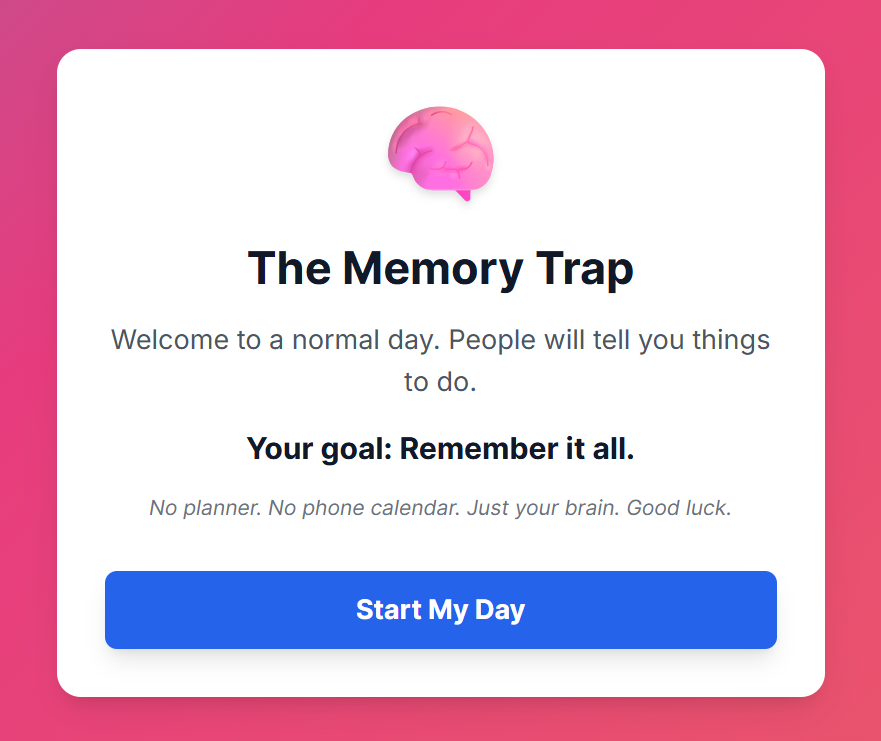
Often, we try to track all our commitments using only our brains. Is that the best strategy? Play the quick simulation below and see how well you can manage a typical day without any digital tools.
Discussion Questions to keep in mind so that you are able to reflect on them with a partner or the class once you complete the simulation.
- How did it feel trying to remember all the specific times, locations, and details without having a way to keep track of them?
- What are likely outcomes of trying to keep track of all those items in just your brain all the time?


Competencies and Standards
MITECS Michigan Integrated Technology Competencies for Students, and
1. Empowered Learner
c. Students use technology to seek feedback that informs and improves their practice and to demonstrate their learning in a variety of ways.
d. Students understand fundamental concepts of how technology works, demonstrate the ability to choose and use current technologies effectively, and are adept at thoughtfully exploring emerging technologies.
6. Creative Communicator
a. Students choose the appropriate platforms and digital tools for meeting the desired objectives of their creation or communication.
Websites & Documents
21T4S Resources
- The Memory Trap simulation